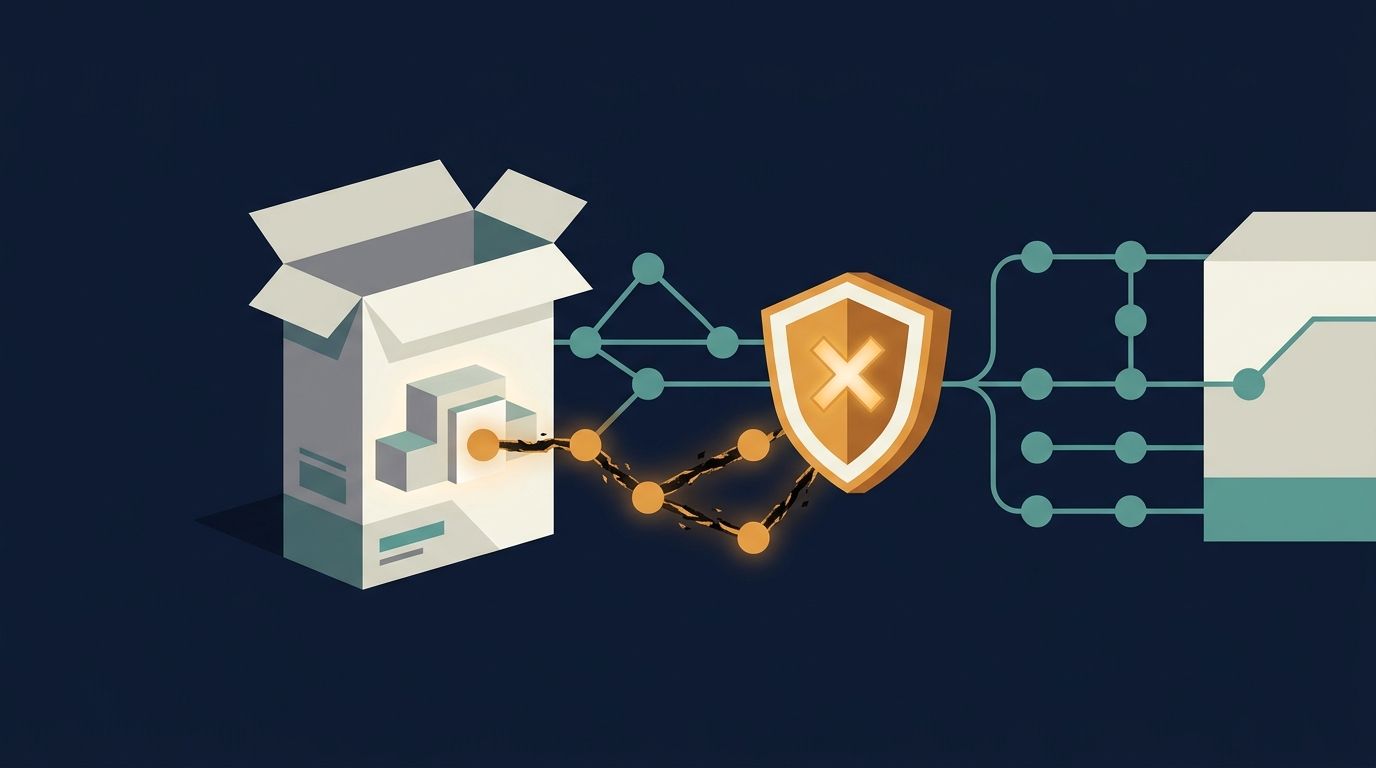
A vulnerable dependency is not the same thing as a malicious package. A vulnerability is a flaw that can be exploited. A malicious package is a package or version that was published or modified to perform harmful behavior. Dependabot malware alerts give that second problem its own queue.
On July 28, 2026, GitHub expanded the data behind these alerts by ingesting advisories from the OpenSSF malicious-packages project into the GitHub Advisory Database. GitHub says the broader data now covers ecosystems including npm, PyPI, and more, and that existing malware alerting benefits automatically. The GitHub changelog entry describes the rollout.
What a Dependabot malware alert tells you
A malware alert means a package in the default branch matched a malicious package advisory. The alert points to the affected file and includes package details, affected versions, and remediation guidance when available. It is a signal to investigate the dependency and the places where it was installed or executed.
- Open the alert from the repository Security and quality tab.
- Record the package name, exact version, manifest path, and first alert time.
- Check whether the dependency is direct or transitive.
- Look for a patched or safe version, but do not assume an upgrade alone removes compromise.
- Treat an internal package with the same name as a public package as a possible false positive.
The malware alert documentation explains what appears in an alert and why name collisions can create false positives.
Enable the alert before you need it
Malware alerts require Dependabot alerts to be enabled first. In a repository, open Settings, go to Security and Advanced Security, enable Dependabot alerts, and then enable Dependabot malware alerts. Organizations can apply the setting through a security configuration. GitHub’s configuration guide documents the repository, organization, and enterprise paths.
After enabling the feature, make the alert view part of the same weekly security review as vulnerability alerts. Malware alerts are more useful when somebody knows who owns the queue and what the first response should be.
A practical response when an alert appears
Start with containment, then investigate. The order matters because package install scripts and runtime code can execute before a developer has finished reading the alert.
- Stop new builds and releases that install the affected package.
- Prevent the package from being added to new branches or images while the alert is open.
- Identify every manifest, lockfile, container image, cache, and artifact that contains the package.
- Check CI logs and deployment logs for the period after the package entered the repository.
- Rotate tokens, cloud credentials, signing keys, and other secrets that may have been reachable by the package.
- Remove the package, rebuild from a trusted lockfile, and verify the resulting dependency tree.
- Document the decision and keep the alert open until the repository and its build outputs are understood.
If the package ran in a developer machine or a runner with access to sensitive systems, involve the people who own those systems. A clean pull request is not proof that a previously executed package did nothing.
Do not treat a malware alert like an ordinary update PR
Dependabot can create pull requests for many vulnerability alerts, but a malware alert is a different kind of event. GitHub’s auto-triage documentation says auto-triage rules can dismiss malware alerts, while the option to open a pull request is for Dependabot alerts, not malware alerts. Read the auto-triage behavior before adding automation.
- Do not auto-dismiss all malware alerts because a package is used only in development.
- Do not merge the next version without checking the advisory and package history.
- Do not assume a lockfile diff proves that old build artifacts are clean.
- Do not confuse a package name collision with a confirmed compromise.
Use the malware view as an investigation queue
The malware view is designed for triage. From the repository, organization, or enterprise Security and quality tab, open the Dependabot findings and select Malware. Use the filters to narrow by package, ecosystem, state, or repository. GitHub’s management guide walks through viewing, filtering, dismissing, and reopening alerts.
# Illustrative investigation notes\npackage: example-package\nversion: 4.2.1\nmanifest: package-lock.json\nfirst_seen: 2026-08-03\nlast_build_using_it: 2026-08-02\n\n# Questions to answer\n- Did the package run an install or postinstall script?\n- Which workflows installed it?\n- Which credentials were available to those jobs?\n- Which artifacts or images were built afterward?How to reduce false positives without hiding risk
Private packages can share a name with a malicious public package. If your organization uses internal package names that overlap with public registries, verify the registry, scope, manifest, and lockfile before dismissing an alert. A dismissal should explain why the alert is inaccurate or why the remaining risk is accepted.
- Use scoped internal package names where the ecosystem supports them.
- Pin private registries explicitly in your package manager configuration.
- Keep a short dismissal comment with the evidence used.
- Review auto-triage rules as code or policy, not as a silent cleanup job.
The short response plan
- Enable Dependabot alerts and malware alerts.
- Assign an owner for the malware queue.
- Contain the package and stop new builds.
- Inspect execution, credentials, caches, artifacts, and images.
- Rotate anything the package could have reached.
- Rebuild from a trusted dependency state.
- Dismiss only after the evidence supports the decision.
The expanded advisory feed increases coverage, but it does not replace good dependency hygiene. Keep lockfiles reviewed, keep install scripts visible in CI, and treat a malware alert as an incident signal rather than a routine version bump.