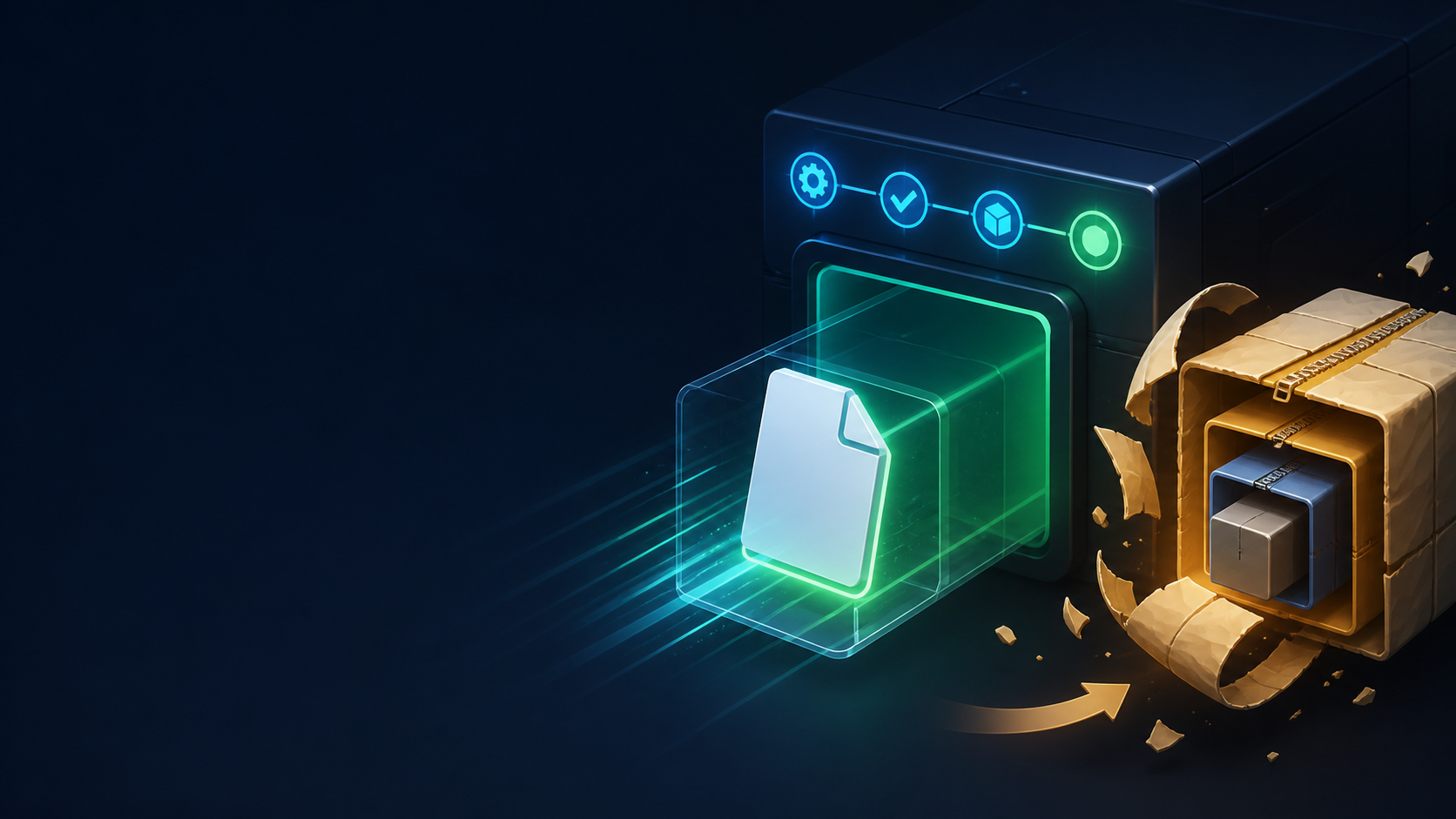
GitHub Actions artifacts are useful for passing reports, binaries, screenshots, and other files between jobs. There has always been a small surprise in the workflow, though: the artifact you upload is normally wrapped in a ZIP archive. That is fine when you have a directory of files. It is less convenient when the output is already one file, especially an HTML report or an image you want to inspect quickly.
GitHub now supports a direct, non-zipped artifact mode in upload-artifact. In this post, we will look at the small configuration change, the one-file limitation, how downloads are paired with it, and the cases where the default ZIP behavior is still the right choice.
What changed in GitHub Actions artifacts
The direct upload option is available in actions/upload-artifact v7. Set archive to false and give the action one file. GitHub's announcement explains the feature and also calls out the matching download-artifact v8 release. The upload action's README has the important details and examples.GitHub Actions changelog and the upload-artifact documentation are the two references worth keeping open while you update a workflow.
name: Upload report
on:
  workflow_dispatch:
jobs:
  report:
    runs-on: ubuntu-latest
    steps:
      - run: printf '<h1>Build report</h1>\n' > report.html
      - uses: actions/upload-artifact@v7
        with:
          path: report.html
          archive: false
With the default setting, report.html would be stored inside an archive. With archive: false, the artifact stays as one file. That is a useful distinction when the output is already a complete thing rather than a collection of files.
The one-file rule matters
Direct mode is deliberately narrow. The path must resolve to one file. A directory or a glob that matches several files is not a way to create a folder-like artifact without compression. If your report consists of an HTML file, CSS, JavaScript, and images, keep the normal archive behavior or package that directory yourself.
This makes direct mode a good fit for outputs such as:
- One HTML report that a reviewer wants to open
- A generated PNG, SVG, or Markdown summary
- A single compiled binary or installer
- One machine-readable JSON file containing build metadata
The artifact name is the filename
There is another important difference from the normal mode: when archive is false, the artifact name comes from the file's name. The name input is ignored. In other words, this configuration does not create an artifact called nightly-report if the file on disk is called report.html. The artifact will be identified by report.html.
- name: Give the direct artifact a useful name
  run: mv report.html nightly-report.html
- uses: actions/upload-artifact@v7
  with:
    path: nightly-report.html
    archive: false
If the filename is not a useful label, rename it before the upload. That small step is easier to understand later than a workflow that appears to set name but produces a differently named direct artifact.
Pair the download action with v8
For a workflow that downloads the result later, use the v8 line of actions/download-artifact as described in the announcement. Keep the name and path relationship explicit so the next job is easy to read. The official download action repository is also a useful reference for filters and destination behavior.download-artifact repository.
- uses: actions/download-artifact@v8
  with:
    name: nightly-report.html
    path: downloaded
Test the producer and consumer together when you make this change. Artifact behavior is easiest to debug when the upload filename, the download name, and the directory you inspect are all visible in the workflow.
Preserve permissions by creating one file
A direct artifact is still one file, so it is not a replacement for an archive when you need a directory tree and its permissions. If you need to preserve executable bits or case-sensitive paths, create a tar file first. Tar lets you keep the directory structure in one uploaded file while avoiding a second ZIP layer from the artifact service.
- name: Package the site once
  run: tar -czf site.tar.gz public/
- uses: actions/upload-artifact@v7
  with:
    path: site.tar.gz
    archive: false
The result is still compressed, but it is compressed by your workflow in a format you selected. That can be a better fit for deployment bundles than allowing the artifact action to add another archive layer.
When the default ZIP is better
Keep archive: true, or omit the setting, when your output has several files. The default is also the simpler choice when existing jobs depend on a custom artifact name, when a test suite emits many files, or when the artifact is really a small folder rather than one finished file. Backwards compatibility is a good reason for the default to remain unchanged.
A useful rule is simple: if someone should be able to download one file and use it immediately, direct mode may be a good fit. If someone needs a set of files with their relationships intact, use an archive.
A short migration checklist
- Confirm the upload path resolves to exactly one file.
- Rename the file first if its filename is not a useful artifact name.
- Update the paired download step to actions/download-artifact@v8.
- Run the workflow once and inspect both the artifact page and the downloaded file.
- Keep the normal ZIP mode for multi-file outputs and directory-shaped artifacts.
The feature is small, but it removes a surprising amount of friction from the common one-file case. Use archive: false for a report, image, binary, or metadata file that should stay exactly as produced. Keep the default for collections of files, and your artifact workflow will communicate its intent much more clearly.
For broader artifact concepts, retention, and workflow usage, see GitHub's workflow artifacts documentation here.