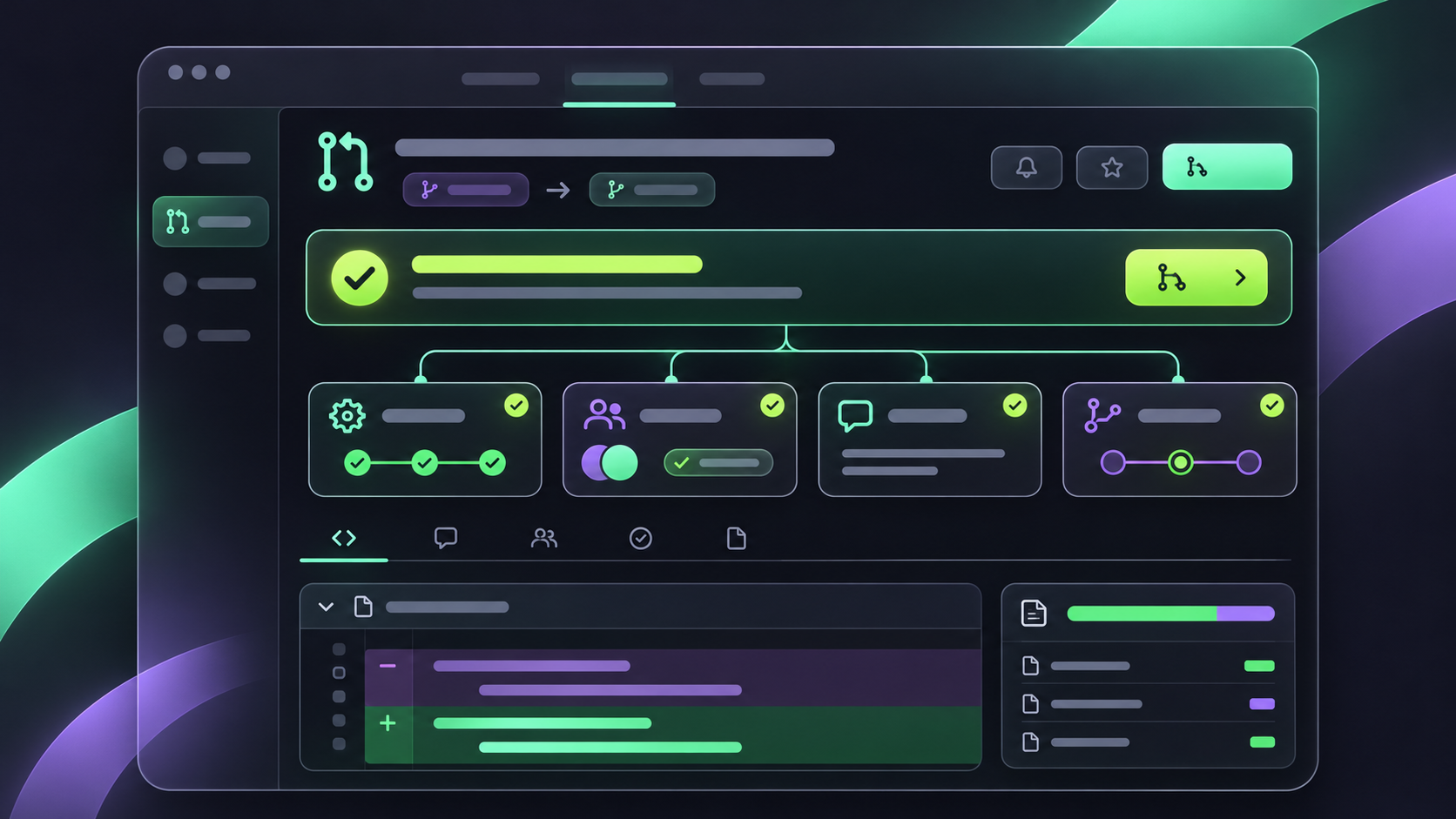
The change targets a familiar review problem: a long pull request contains code, checks, approvals, conversations, and status updates, but the most important question is usually simple. What is blocking the merge, and what can I do next?
How to enable the preview
Open one of your pull requests and select the Try the Overview page button in the header. The preview is opt-in, so you can compare it with the classic overview and switch back from the same menu. Rollout began on November 5 and is continuing as GitHub expands the preview.
Start with the readiness summary
The redesigned merge area brings the main signals together: checks, comments, approvals, branch status, and merge readiness. It uses less space than the old merge box while keeping the supporting context nearby. Read this section first, then follow the signal that explains the current state.
Turn blockers into the next action
If the branch is behind, update it. If a check failed, open the relevant check details. If approval is missing, see who still needs to review. If a conversation is unresolved, open that discussion. The Overview page is most useful when you treat each status as a shortcut to a decision rather than as another dashboard to scan.
Catch up without losing your place
The preview adds filters for unresolved conversations and comments you wrote. Use unresolved when you want to clear open questions before merging, and use mine when you are following up on your own review feedback. This is faster than searching the entire thread for the conversations that still need a response.
You can also sort comments newest first. Use that view when a pull request has been active for several days and the latest decision matters more than the opening discussion. Switch back to the normal order when you need the full history of how a review evolved.
Use the activity summary for a quick catch-up
The summary in the upper-right points to review comments, review requests, and other updates. Open it when you return to a pull request after time away. It gives you a compact route to recent activity without making you reconstruct the timeline from the top.
Header actions are closer to the work
The preview lets you mark a draft ready for review or close a pull request from the header. Available actions depend on your permissions, so the page can show a different set of controls for authors, reviewers, and maintainers.
How this fits with merge queues
The Overview page helps you understand whether a pull request can move forward; it does not replace branch protection or a merge queue. If your repository requires a queue, use the readiness summary to fix checks and approvals first, then add the pull request to the queue when it meets the repository rules.
A useful team workflow
Ask authors to start each review session from the readiness summary. Ask reviewers to use unresolved and mine when following up. Ask maintainers to use the activity summary before making a merge decision. This creates a shared habit: summary first, evidence second, action third.
Treat the preview as a workflow experiment
GitHub describes the page as an early starting point. Try it on a small set of pull requests and record where it saves time, where you still need the classic view, and whether the compact summary makes blockers easier to explain. Use the menu to return to the classic overview when the new layout hides context you need.
The new Overview page is a small interface change with a useful goal: reduce the time between opening a pull request and knowing what to do next. Start with the readiness summary, follow the blocking signal, and keep the detailed conversation available when you need it.